Find your unfinished posts
How to find Twitter drafts on iPhone, Android, and web
You saved a post for later, but now you can't find the text. Start with the composer in the app or browser where you wrote it, before trying fixes that could erase it.
On this page
Open the composer before troubleshooting
To find Twitter drafts, open the post composer and look for Drafts on the X mobile app. On the web, open the composer, choose Unsent posts, then Drafts. Start in the account and app or browser where you saved the text.
Don't log out or reinstall the mobile app as your first attempt to recover a missing draft. X's mobile help pages warn that those actions delete saved drafts. Finding an existing draft and recovering an erased one are different problems.
Once you find it, copy any text you can't afford to lose somewhere you can reopen independently. Then decide whether the post needs more work or is ready for a publication time. Saving an idea shouldn't force you to publish it before it's finished.
Find drafts on iPhone or iPad
X's iOS instructions for saved drafts give this route:
- Open the X app in the account you used to write the post.
- Tap the post compose icon.
- Tap Drafts, then select the saved post you want to continue.
To save unfinished text, tap Cancel in the composer and choose Save draft. X says the Drafts option appears only when you have at least one saved draft. A missing button alone doesn't tell you whether you saved the text somewhere else or never saved it.
The same help page warns that logging out through the app or uninstalling it deletes saved drafts and that they cannot be restored. Preserve an independent copy of important text before either action. Don't treat reinstalling as a draft-recovery method.
Find drafts on Android
Open the composer in the X Android app and select Drafts. X also documents another path: open your profile, select the overflow menu, then choose Drafts.
To save a new draft, close the compose window with its X control and choose the save-as-draft option. According to X's Android help page, Drafts appears only when at least one draft exists. That page also warns that logging out through the app or uninstalling it deletes saved drafts without a restoration option.
If you're looking at an empty list, check which account is active and return to the device where you remember writing the post. Avoid changing the app's storage or login state while you're still trying to locate your only copy.
Find drafts on the web
In your browser on x.com:
- Open the post composer.
- Select Unsent posts in the upper-right area.
- Choose Drafts and open the post you saved.
This is the route in X's web troubleshooting documentation. That page describes a draft remaining in Unsent posts after logging out on the web, unlike the warnings in its mobile app documentation. Don't turn either statement into a rule for every X client.
If you saved the text in a separate writing or scheduling tool, check that tool too. A post you drafted in PilotMyX is a different saved item from one you started in X's own composer. Connecting an account doesn't mean every unfinished sentence from every app is in one list.
If your Twitter drafts disappeared
Work backward from the last place you saw the words. Were you using the X app, x.com, PilotMyX, or a notes app? Were you in your personal account or another profile? Did you choose to save, or just leave the screen?
Check that original location before concluding the draft was deleted. This is a search order, not a promise that drafts always sync or never sync between devices. Check any other copy directly, including its attachments, before relying on it.
If you already logged out of or removed the mobile app, X's documented warning may explain the loss. A copy in your notes or another tool can still help; neither this guide nor PilotMyX can restore erased native X drafts. If you find no copy, reconstruct only the facts you remember and verify them before posting.
Don't confuse an unpublished draft with a post you already sent. If the text was published, use the guide to finding your old tweets instead.
Decide whether the recovered draft is ready
A saved sentence can still be a weak post. Read it without the context you had when you wrote it. Does it name the situation? Are the numbers still accurate? Is the attached image the one you intended to share?
| What you found | What to do next |
|---|---|
| A useful idea without an example | Keep it as a draft and identify the fact or image you need. |
| A complete post with a verified claim | Review the exact wording and choose when to publish. |
| A dated announcement whose timing changed | Correct the date, availability, and links before scheduling. |
| A generic line you no longer agree with | Set it aside rather than publishing it to clear the list. |
For example, an unfinished draft might say, "The new booking flow is much easier." To finish it, you need the actual change. If you removed a repeated address field, explain that change and show the relevant screen. Don't invent a conversion increase to make the draft sound complete. This is a fictional writing example, not a product result.
If the idea is useful but the opening is vague, work on the first line of the post. If you haven't chosen a subject at all, the first tweet examples are a better starting point than polishing an empty claim.
Keep drafts separate from scheduled posts
In PilotMyX, open Calendar to review the drafts you've created there. The Drafts list contains work that isn't scheduled yet. A draft can also have a planned date without being scheduled for publication. Check its status, not just whether it appears beside a date.
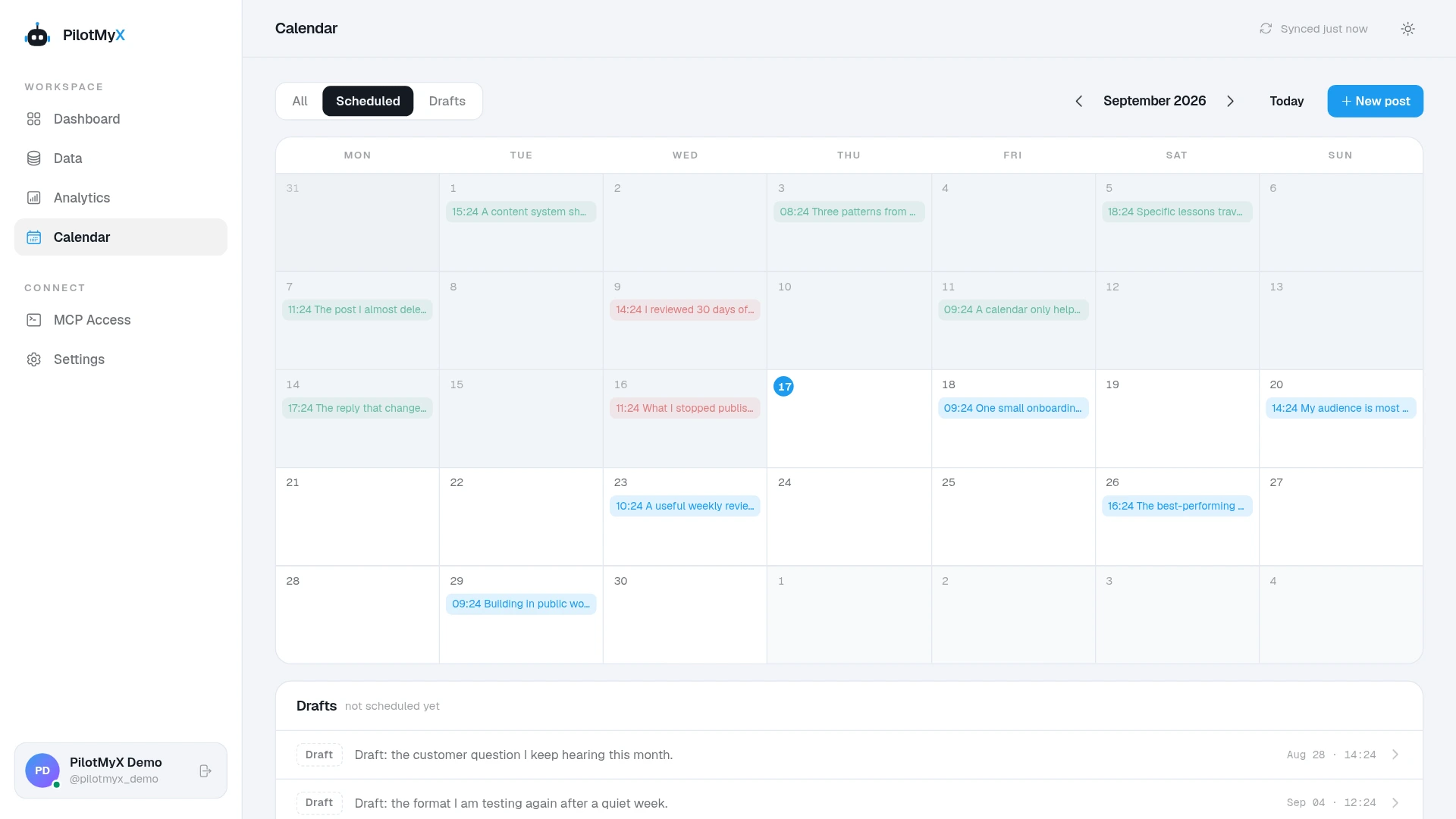
You can use the app directly. If you work with a connected agent, ask it to inspect your saved PilotMyX drafts and identify what's missing before rewriting them:
Review my saved PilotMyX drafts without changing them.

List the drafts and distinguish unfinished work from scheduled
publications. A planned date alone does not mean scheduled.
For each draft, identify any claim, date, link, or attachment
that needs my confirmation. Do not invent missing facts or
assume you can read drafts stored in the native X app.

Help me finish one draft I select. Ask for the facts it needs,
then propose the exact text for review. Don't create, edit,
delete, schedule, or publish anything yet.
The agent does the writing and interpretation; PilotMyX stores drafts and handles approved scheduling. After you approve the exact post and time, the scheduling workflow covers the next step. If the draft still needs evidence, leave it unscheduled and write down what you need to check.
Use your own account