Bring your X history in
Connect your account through X. PilotMyX imports the posts and replies included in your plan and refreshes recent data daily.
ChatGPT dots + PilotMyX
Connect PilotMyX to your ChatGPT account, then let your dot review your X/Twitter results with read-only access. Connect over MCP and ask questions grounded in the posts and replies you actually published.
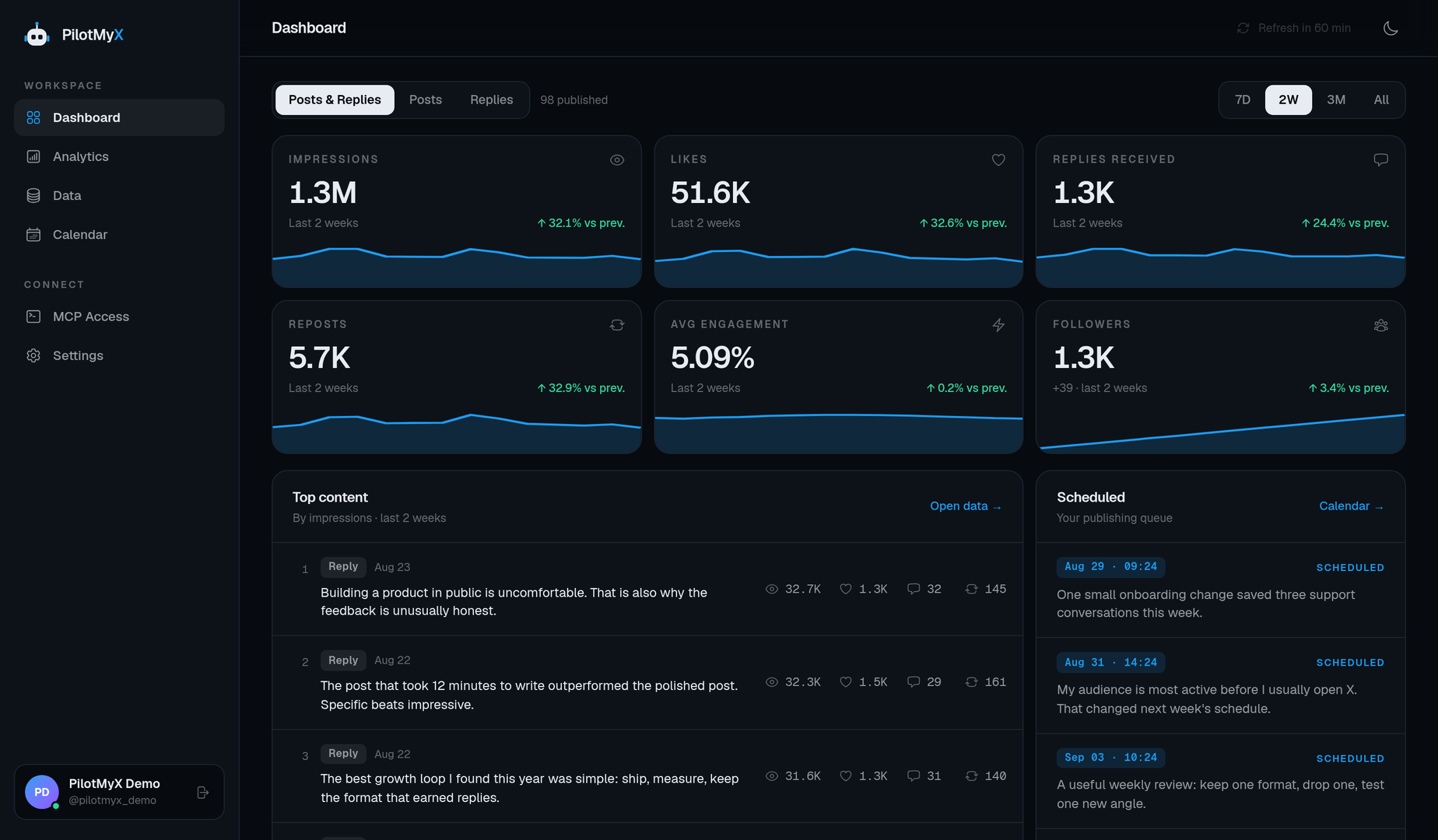
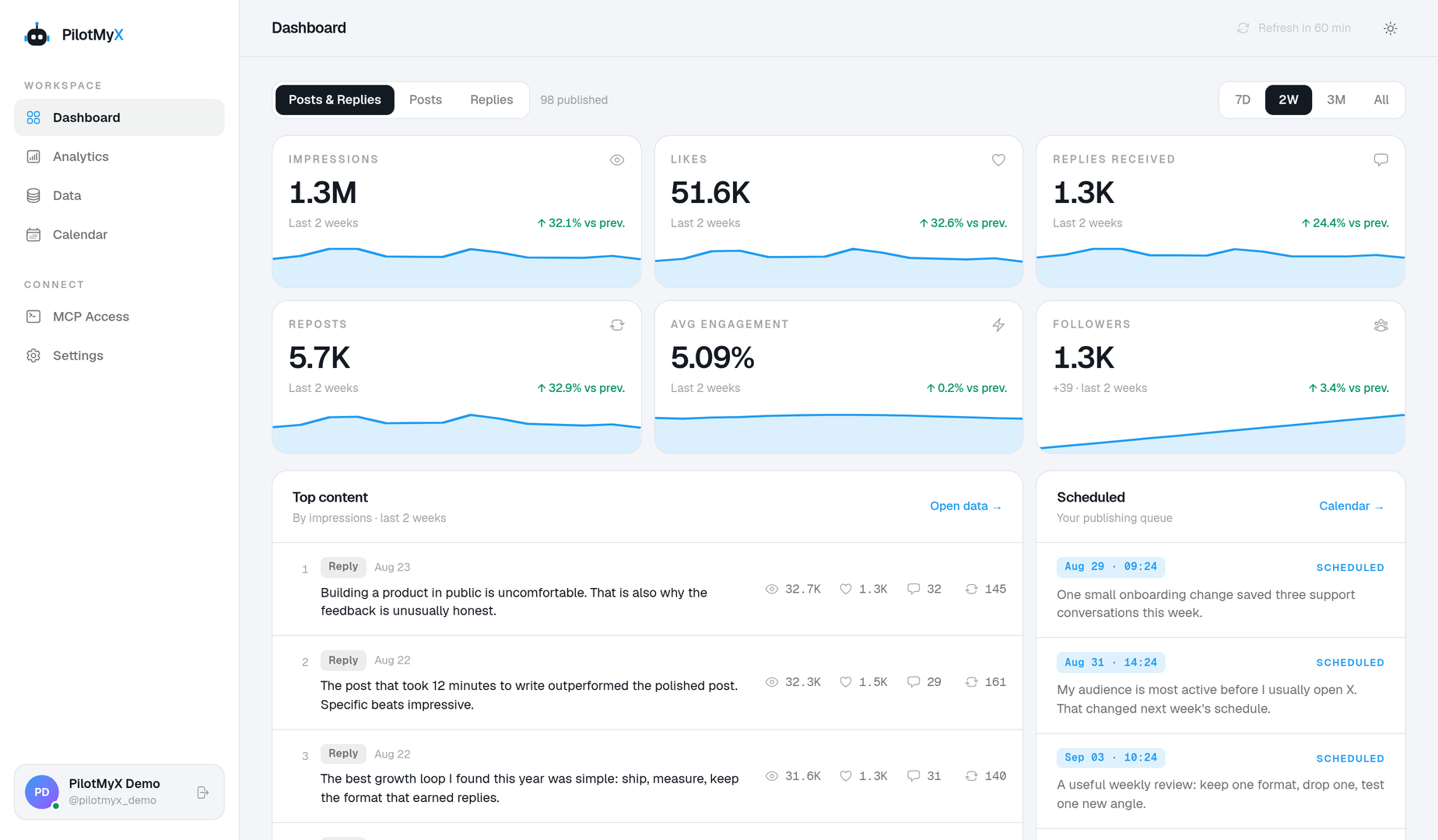
Which posts earned the most attention last month, and what should I test next?
From account to action
Connect once, give ChatGPT dots a read-only view of your results, and use the evidence to decide what to try next.
Connect your account through X. PilotMyX imports the posts and replies included in your plan and refreshes recent data daily.
Approve read-only access on the PilotMyX sign-in screen. Ask what performed, over which period, and which real posts support the answer.
Use those findings to draft a new angle. Saving or scheduling through PilotMyX needs a separate, explicitly approved write permission.
What ChatGPT dots can do with PilotMyX
PilotMyX supplies the facts. ChatGPT dots helps you interpret them and plan the next test. It does not need publishing access to analyze your account.
Inspect reach and engagement for individual posts, with the content behind each result.
See whether original posts or replies are doing the work, using a shared time window.
Compare periods and account trends before deciding whether an idea is worth repeating.
Ask for a new angle based on examples from your own account, not generic posting advice.
Ask for a draft in your conversation. Saving or scheduling it through PilotMyX requires a separate write permission.
Review the requested permissions at sign-in and revoke the connection from PilotMyX when you need to.
The connection
It is the bridge between ChatGPT dots and your connected X account. Your agent requests cached posts, replies and analytics from PilotMyX, then works with that evidence in your conversation.
PilotMyX does not generate your strategy on the server. Your agent does the reasoning; you decide whether a draft gets published.
Explore the MCP toolsRead-only by default · Publishing requires a separate scope
Try asking ChatGPT dots
“Compare my original posts and replies from the last 30 days. Which had more reach? Show the sample size and three real examples.”
“Find the posts that beat my usual engagement. What do they have in common? Suggest one angle to test next, but don’t publish it.”
Setup guide
Follow these steps for ChatGPT dots. The PilotMyX consent screen starts with read-only access; no token needs to be pasted into ChatGPT dots.
Your dot uses supported plugins installed and enabled for your ChatGPT account. You need access to ChatGPT dots and a PilotMyX plan or trial with imported X/Twitter data.
This is the ChatGPT plugin connection, not a separate X login inside your dot. Follow the ChatGPT setup guide if PMX is not installed yet.
On ChatGPT web:
Name: PilotMyX
MCP server URL: https://pilotmyx.com/mcp
Authentication: OAuth
You do not need a manually copied bearer token for this flow. Creating a personal connection does not publish PMX in the public plugin directory.
Message your dot with this bounded request:
Use my installed PilotMyX plugin to check the connected X account and data freshness. Compare posts and replies from the last 30 days. Show the examples behind the result. Keep everything read-only.
Confirm that it actually calls PMX tools and identifies the expected account. The installed plugin, its connected identity, and its permissions must all be available in the environment where the dot runs.
A messaging contact method is not a plugin connection. Giving your dot a phone number or messaging it in Slack does not by itself authorize PMX access.
Start with one review before asking for recurring work. Ask for a short report containing the compared period, evidence, one idea to test, and what data was unavailable.
The PMX MCP guide provides the action contracts. The downloadable skill adds reusable analysis instructions. If you install that skill locally, your dot needs access to that computer; a remote PMX plugin alone does not grant access to local files.
Read-only PMX access lets the dot analyze results and propose text in its response. Saving a PMX draft, scheduling a post, or publishing requires its own approved permission.
If a connection expires, complete the reconnect request before continuing. Revoke the credential in MCP Access and remove or disable the plugin in ChatGPT to disconnect it. Stop any recurring task separately; revoking PMX access does not delete that task.
Client settings change. Check the platform's current requirements before connecting.
Read the platform documentation ↗FAQ
No. The default connection is read-only. Publishing needs a separate permission grant; the setup below does not request one.
No. PilotMyX provides the account data and publishing tools. ChatGPT dots does the writing and analysis in your own agent session.
Ask the agent to check the last synchronization time before analyzing a period. PilotMyX refreshes subscribed accounts daily; the MCP skill explains how to check freshness and request a refresh when needed.
Connect your X account, then give ChatGPT dots the real results behind your ideas.