Bring your X history in
Connect your account through X. PilotMyX imports the posts and replies included in your plan and refreshes recent data daily.
Gemini + PilotMyX
Connect PilotMyX as a custom Gemini app to compare your X/Twitter results. Requires access to Google's custom apps feature. Connect over MCP and ask questions grounded in the posts and replies you actually published.
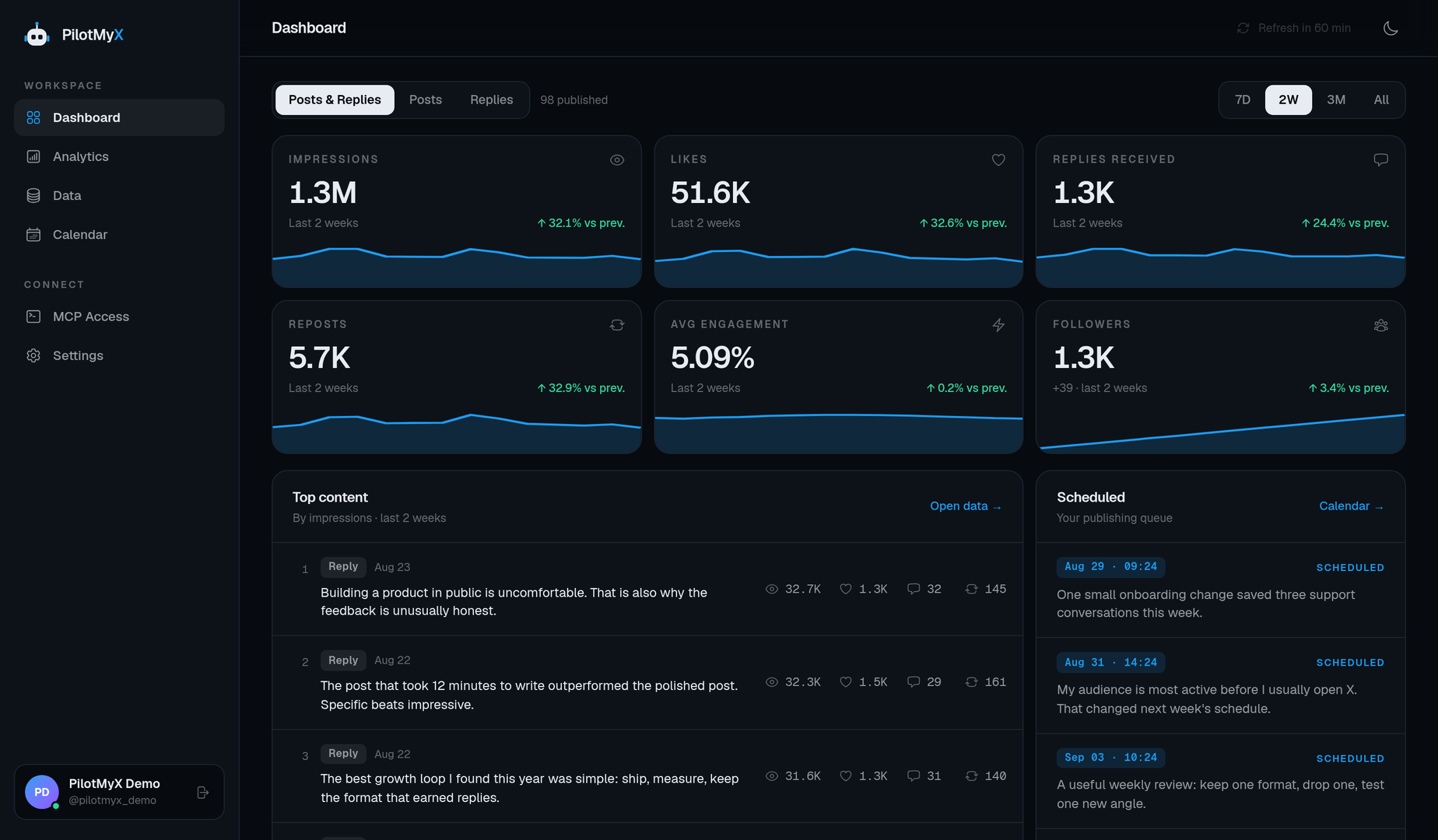
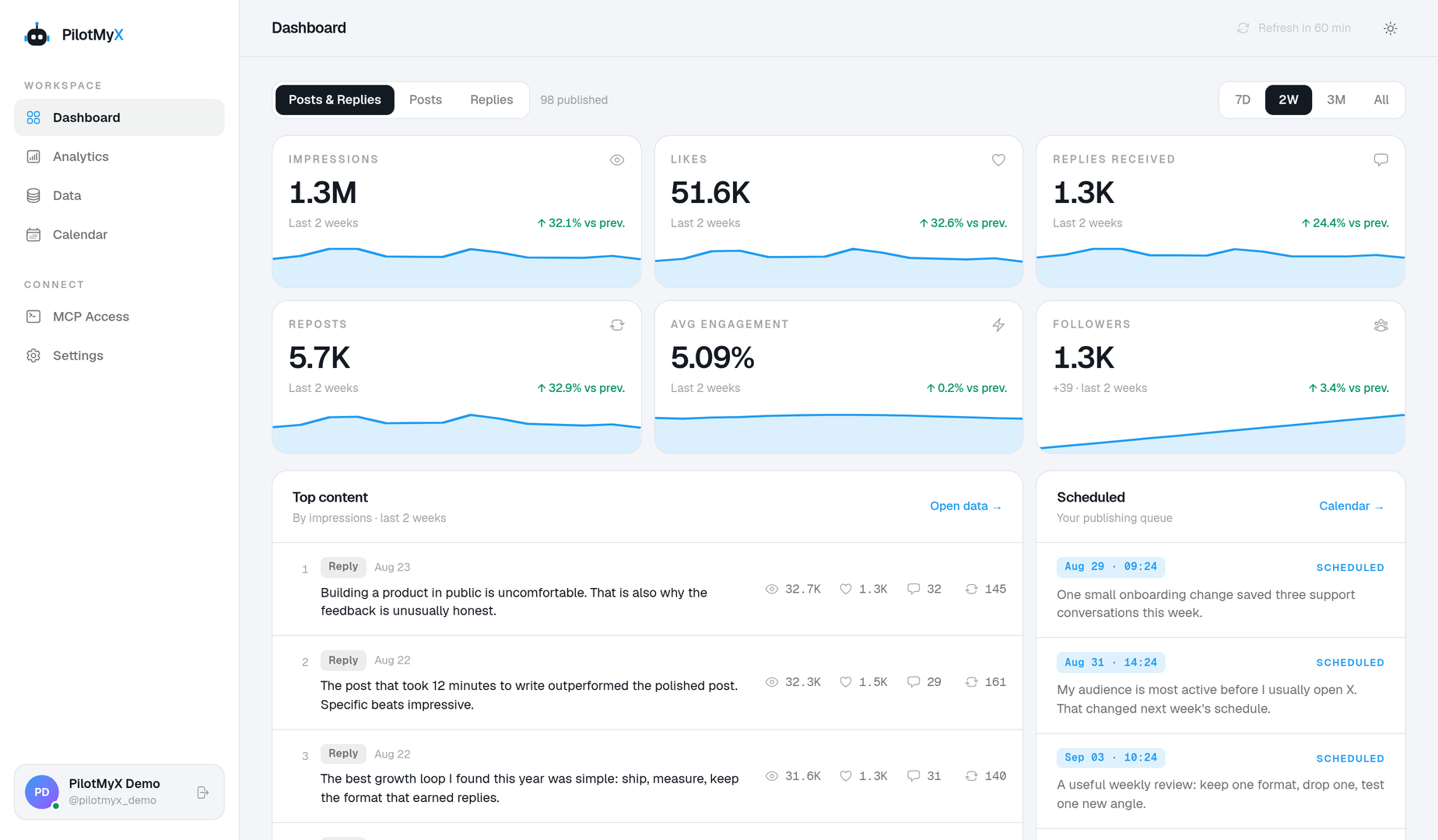
Which posts earned the most attention last month, and what should I test next?
From account to action
Connect once, give Gemini a read-only view of your results, and use the evidence to decide what to try next.
Connect your account through X. PilotMyX imports the posts and replies included in your plan and refreshes recent data daily.
Approve read-only access on the PilotMyX sign-in screen. Ask what performed, over which period, and which real posts support the answer.
Use those findings to draft a new angle. Saving or scheduling through PilotMyX needs a separate, explicitly approved write permission.
What Gemini can do with PilotMyX
PilotMyX supplies the facts. Gemini helps you interpret them and plan the next test. It does not need publishing access to analyze your account.
Inspect reach and engagement for individual posts, with the content behind each result.
See whether original posts or replies are doing the work, using a shared time window.
Compare periods and account trends before deciding whether an idea is worth repeating.
Ask for a new angle based on examples from your own account, not generic posting advice.
Ask for a draft in your conversation. Saving or scheduling it through PilotMyX requires a separate write permission.
Review the requested permissions at sign-in and revoke the connection from PilotMyX when you need to.
The connection
It is the bridge between Gemini and your connected X account. Your agent requests cached posts, replies and analytics from PilotMyX, then works with that evidence in your conversation.
PilotMyX does not generate your strategy on the server. Your agent does the reasoning; you decide whether a draft gets published.
Explore the MCP toolsRead-only by default · Publishing requires a separate scope
Try asking Gemini
“Compare my original posts and replies from the last 30 days. Which had more reach? Show the sample size and three real examples.”
“Find the posts that beat my usual engagement. What do they have in common? Suggest one angle to test next, but don’t publish it.”
Setup guide
Follow these steps for Gemini. The PilotMyX consent screen starts with read-only access; no token needs to be pasted into Gemini.
Connect your X/Twitter account to PilotMyX and start a plan or trial. Wait for the initial import before asking Gemini to compare results.
This guide uses Gemini's custom apps, not Gemini CLI. Google currently requires a personal account, US availability, age 18 or over, English, and Keep Activity enabled. Setup happens on the web; the connected app can then be used on mobile. If Custom apps is missing, use the Gemini CLI guide.
MCP server URL: https://pilotmyx.com/mcp
Authentication: OAuth
PilotMyX supports dynamic client registration. You do not need to create an OAuth application or paste a PilotMyX token into Gemini's advanced fields.
In a new conversation, type @ and select the connected custom app. Ask:
Use PilotMyX to check which X account is connected and how fresh its data is. Compare my posts and replies over the same 30 days. Show the posts behind the result. Do not change anything.
Check that Gemini calls PilotMyX tools, identifies your account, and reports a real date range. A summary based only on public X search is not a test of this connection.
Ask Gemini to pick one topic or format supported by those examples and draft a new post in the conversation. Read-only access is enough for this. Saving a draft in PMX or scheduling it needs an additional permission you explicitly approve.
The MCP guide explains the tools and permissions. For reusable analysis instructions, use the installation prompt in MCP Access.
Unlink the custom app in Connected Apps and revoke its PMX credential in MCP Access when you no longer need it.
Client settings change. Check the platform's current requirements before connecting.
Read the platform documentation ↗FAQ
No. The default connection is read-only. Publishing needs a separate permission grant; the setup below does not request one.
No. PilotMyX provides the account data and publishing tools. Gemini does the writing and analysis in your own agent session.
Ask the agent to check the last synchronization time before analyzing a period. PilotMyX refreshes subscribed accounts daily; the MCP skill explains how to check freshness and request a refresh when needed.
Connect your X account, then give Gemini the real results behind your ideas.