Make image posts readable
How to write alt text for Twitter images people can use
A chart or screenshot can carry the whole point of a post. Give readers who cannot see it the information they need, then check the description before it goes live.
On this page
Your image makes the point. Your post should not depend on seeing it.
You share a screenshot of a result, a chart from your analytics, or a photo of a change you made. The post says, “This surprised me.” Someone who cannot see the image has no way to know what did.
Alt text is the description attached to an image. On X/Twitter, it helps readers using screen readers, readers with low vision, and people who cannot load the image understand what you shared. X's guide to image descriptions says each image can have its own description. Write one before you schedule the post, while you still remember why the image matters.
Describe the information, not every pixel
First, finish this sentence for yourself: “I attached this image because…” The answer tells you what the description needs to preserve. Name the visible subject and the detail a reader needs to follow your post. If the post already states that detail, do not make someone hear it twice.
For a photo, describe the action or object that matters. For a screenshot, identify the screen and include any text needed to understand the point. For a chart, name the metric, period, and meaningful comparison. X's writing guide recommends including or summarizing text in images, avoiding repetition, and explaining the findings in complex visuals. Its limit is 1,000 characters per image, not a target to fill.
Here is a fictional example. Suppose your post says you simplified a checkout form and includes before-and-after screenshots.
- Too vague: “Two screenshots of a website.”
- Useful: “Before: a checkout form asks for a phone number, company name, and shipping address. After: the first screen asks only for an email address and payment method.”
That description gives the reader the change. It does not invent a conversion result. If the screens show other required steps later in the flow, do not imply you removed them entirely.
A chart needs its conclusion in words
This PilotMyX screenshot is a useful example of a dense image. It shows a three-month view of original posts and a timing heatmap for profile visits per 1,000 impressions. The cells vary by weekday and local hour. Simply writing “analytics screenshot” would leave out the metric and the structure. Reading every cell aloud would bury the point.
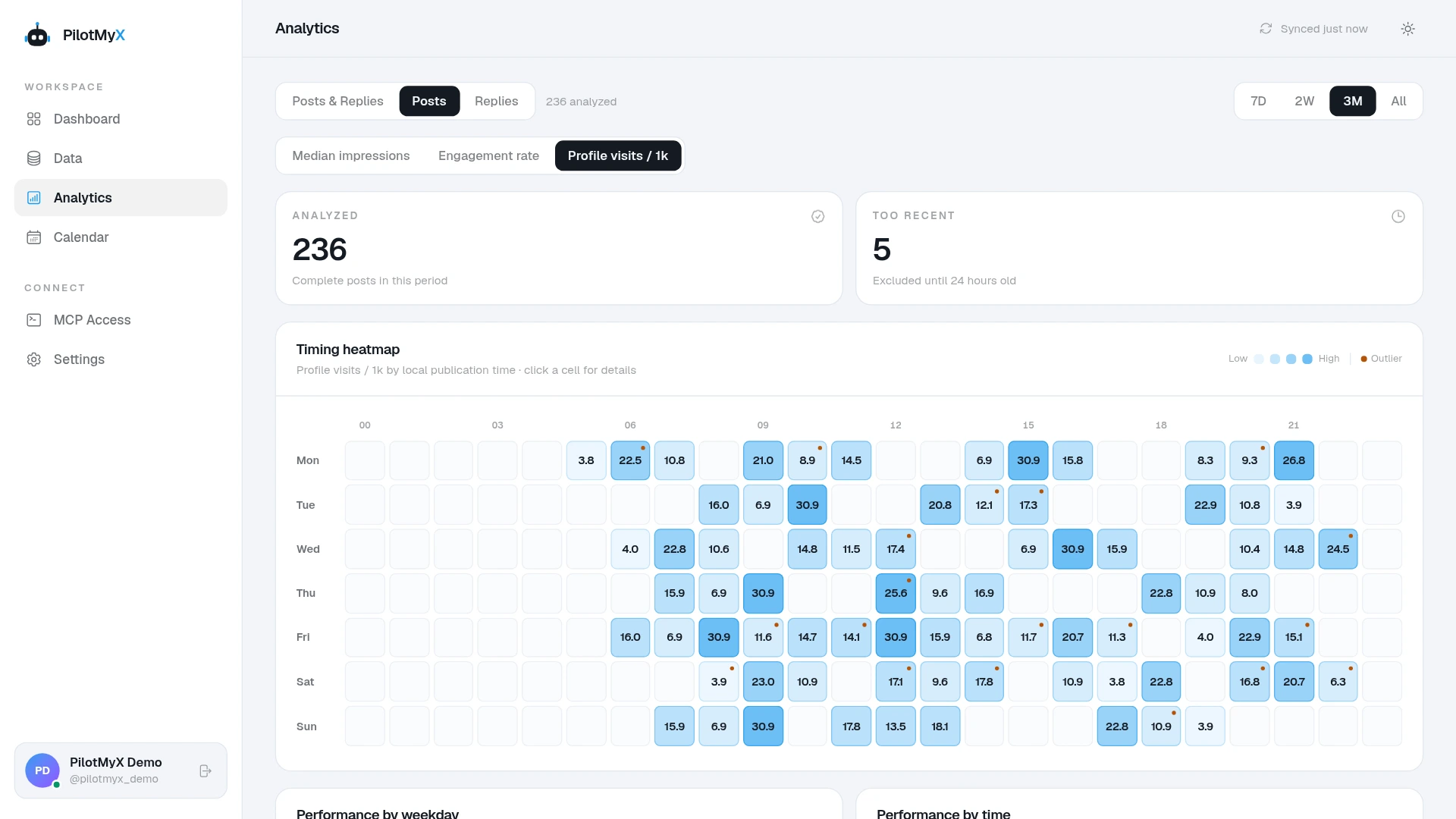
If you publish a chart like this, write the actual finding in the post text as well. The description can identify the chart and the important values the post does not already state. A reader should not have to zoom into tiny labels to understand your conclusion. The W3C's guidance on complex images makes the same distinction: a short label identifies the visual, while the essential information may need a fuller explanation nearby. A post is not a web page, but the principle still helps when a chart is too detailed for one short sentence.
Do not turn a screenshot into proof it cannot provide. A timing heatmap describes the posts in that account and period; it does not establish a universal best hour or show that posting at a particular time caused the result. If your chart comes from your own account, check the period, metric, and missing data before writing the conclusion. The guide to choosing a posting time explains how to read that evidence without treating one outlier as a rule.
Check every image before the post goes live
Open the draft in the PilotMyX Calendar. Add your images, open each image preview, and write or edit its Alt text. Save the description for a media item before approving the post. PilotMyX keeps images in an order, so read the descriptions in that order too. “First image” and “second image” can be helpful when the sequence matters; they are not a substitute for describing either image.
If you publish from X itself, upload the image and select +ALT on it. X says you can add a separate description to each image and check the ALT badge before posting. It also offers an optional image-description reminder in its accessibility settings. That reminder is a feature of X's composer; do not assume it will catch a missing description in a third-party scheduler.
Read the finished post without opening the images. Then read the alt text with the images hidden. Can you tell what changed in a screenshot, what a chart measures, or why the photo is there? Remove guesses about a person's identity, intent, or emotion that the image does not establish. If a chart is too complicated to describe honestly, put the core numbers and takeaway in the post text or link to a longer explanation.
An AI agent can suggest wording if it can inspect the actual image or if you provide an accurate description. Check every number and label against the image yourself. PilotMyX stores the description you approve; it does not supply a reliable interpretation of a chart on your behalf. The scheduling guide covers the other final checks, including wording, image order, and publication time.
Before approving your next image post, hide the image and read the text. If you cannot tell what the screenshot shows or what the chart measures, add the missing detail.
Use your own account